
Getting started
Shopify: personalized recommendations, from the terminal to the store
This article follows a real installation of LIKYLY on a Shopify development store, LIKYLY Sandbox: Horizon theme, 120 products spread across six catalogs (running shoes, books, golf clubs…). Every screenshot comes from this store, from the terminal where the wizard ran, or from the LIKYLY console. We finish with what makes the difference over time: why the products shown get more relevant as the store lives.
What an AI assistant does not do in place of a recommendation engine
Ask ChatGPT, Claude or Gemini “which shoe for a marathon, the Swift Elite or the Cloudhaven?” and you will get a careful comparison of the two products, based on their descriptions and on what the web says about them. That is useful to a shopper who already knows what to compare. But it is still a comparison of products with each other, and that is where the assistant stops:
- It does not know your visitor. It has no idea what she looked at five minutes ago, what she bought last month, or what the customers who followed the same path as her bought.
- It answers a question, not every page view. A recommendation engine computes a selection for every visitor, on every product page, every home page, every cart, without anyone asking for anything.
- It does not see your data. Your store’s views, clicks, carts and orders are your asset. No public assistant has access to them, and yet they are what tells which products go together for your customers.
- It does not learn from what happened. No one tells it whether its suggestion was clicked or bought. LIKYLY measures every product shown, clicked and bought, then retrains its model on those results.
LIKYLY also uses AI to compare products: from day one, semantic embeddings match product pages by their name, description and attributes. But it goes further: a collaborative filtering model learns, from your store’s interactions, what customers with similar tastes look at and buy. And an AI assistant, Claude Code, handles the installation. The two complement each other.
Step 1: the wizard in the theme
We pull the theme with Shopify CLI, then run the wizard in its folder. Nothing is installed in the store: it writes the public key to snippets/likyly-key.liquid and adds a self-contained section, sections/likyly-recommendations.liquid.
shopify theme pull --store likyly-sandbox.myshopify.com
npx @likyly/wizard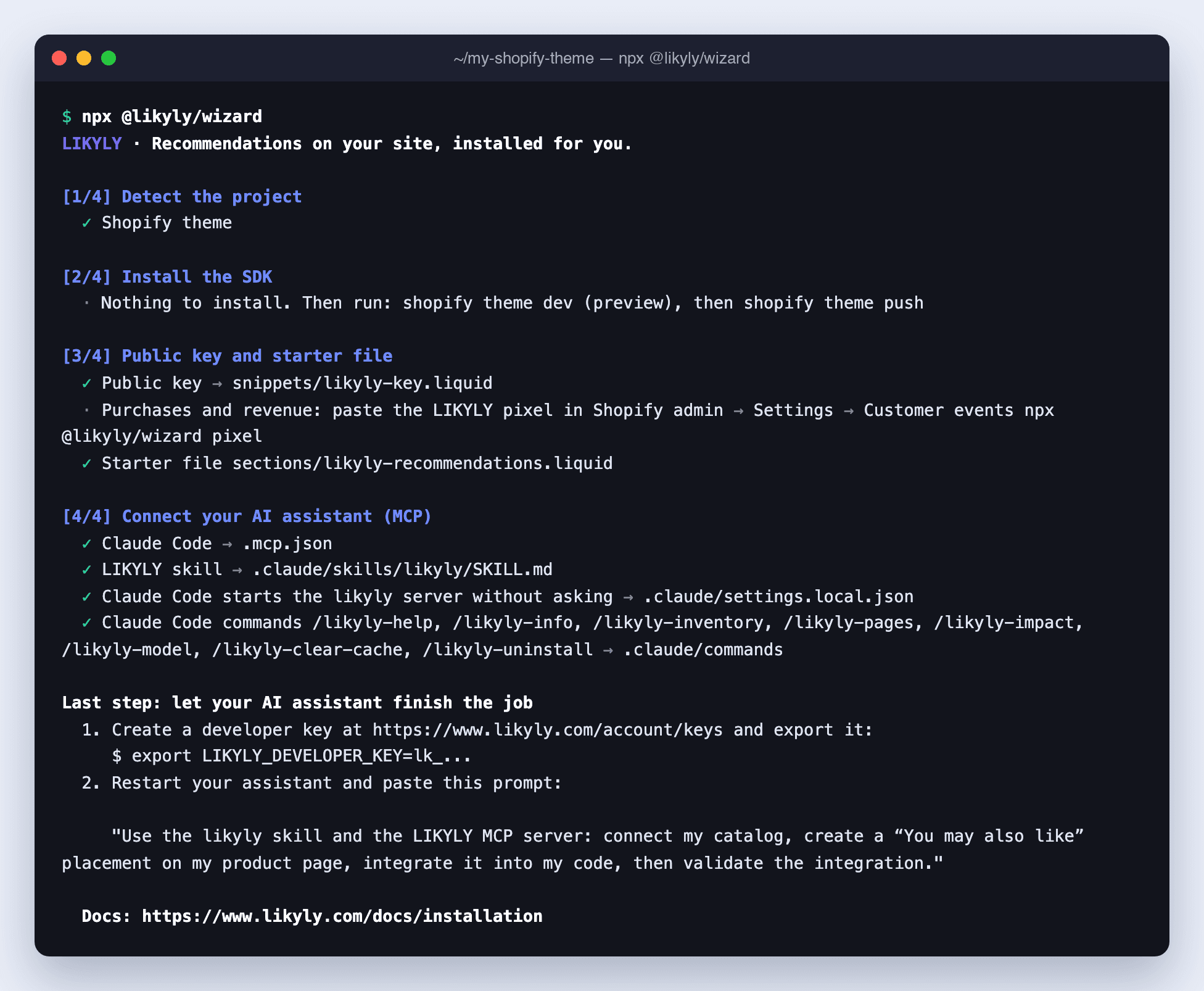
@likyly/wizard 0.18.1, here in non-interactive mode (--yes) on a copy of the theme. In normal mode, it also opens likyly.com so you can sign in and get the keys.Right after you sign in, the wizard connects the store’s catalog. You type the store’s address in the terminal, then the client ID and secret of a Shopify Dev Dashboard app that has the read_products scope. The secret is masked, goes straight to LIKYLY, encrypted, and never passes through your AI assistant or a file.
Step 2: Claude Code places the block
The wizard then hands over to Claude Code (see the hand-over in detail). With the LIKYLY MCP server, Claude creates the “You may also like” placement and adds the section to templates/product.json. You can also place it yourself in the theme editor: Add section → LIKYLY recommendations. We preview, then publish:
npx @likyly/wizard preview      # runs shopify theme dev here, in your terminal
shopify theme push              # once you are happy with the block
Step 3: the block on the product page
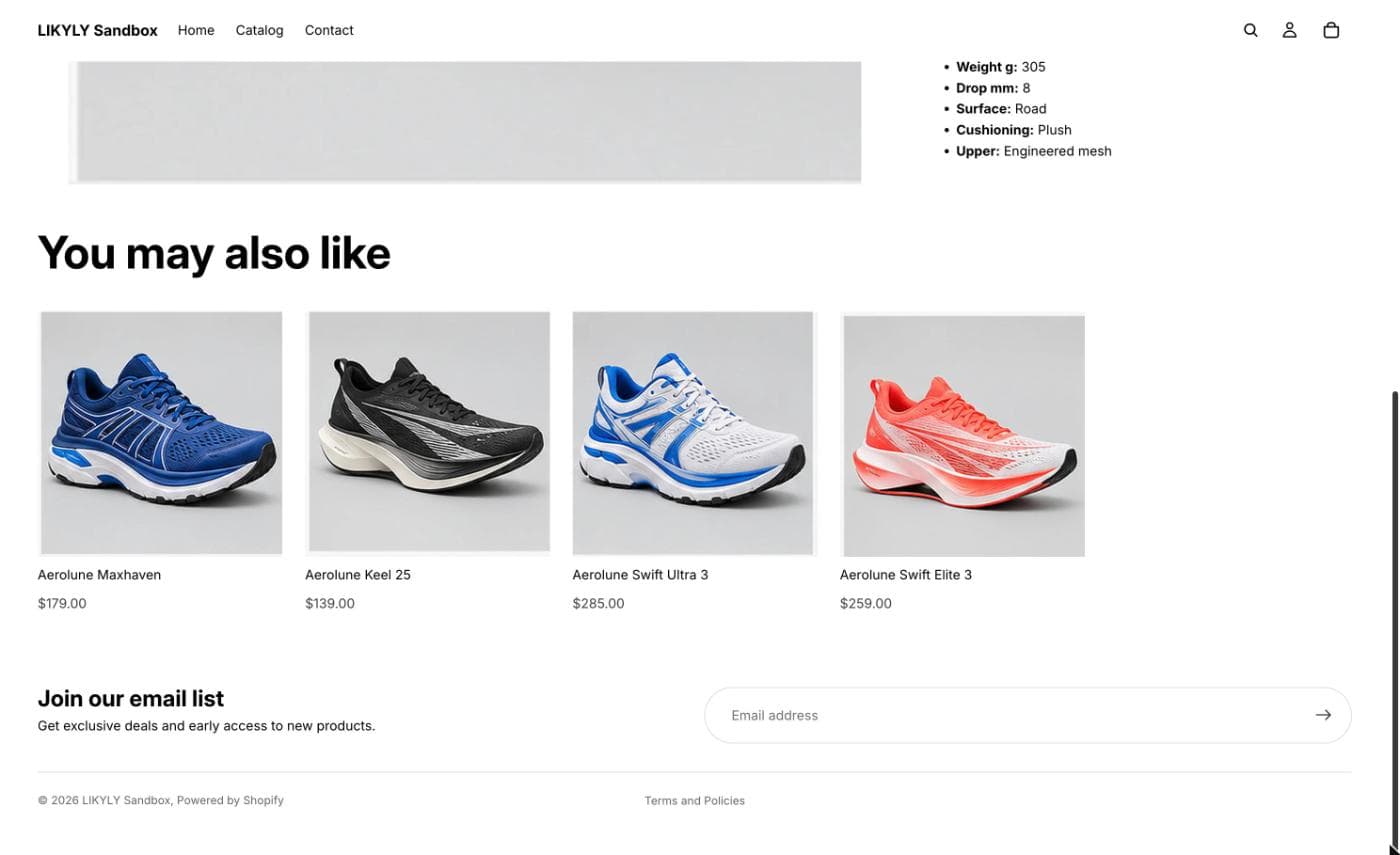
The section asks LIKYLY which products to show, then reads each of them from the store itself: so the price follows the visitor’s currency, and the link leads to the right product page. It sends the product page view, then the impressions (a product of the block that came on screen) and the clicks. The product on display never appears in its own selection.
Step 4 (optional): the pixel, to count purchases
Payment happens on Shopify’s checkout, where theme code does not run. For LIKYLY to know that a product clicked in a block was bought, and for how much, the wizard generates a pixel to paste once into the Shopify admin (not the LIKYLY console): Settings → Customer events → Add custom pixel. Views, impressions and clicks are already sent by the theme section: without the pixel, they are counted, but no purchase is attributed.
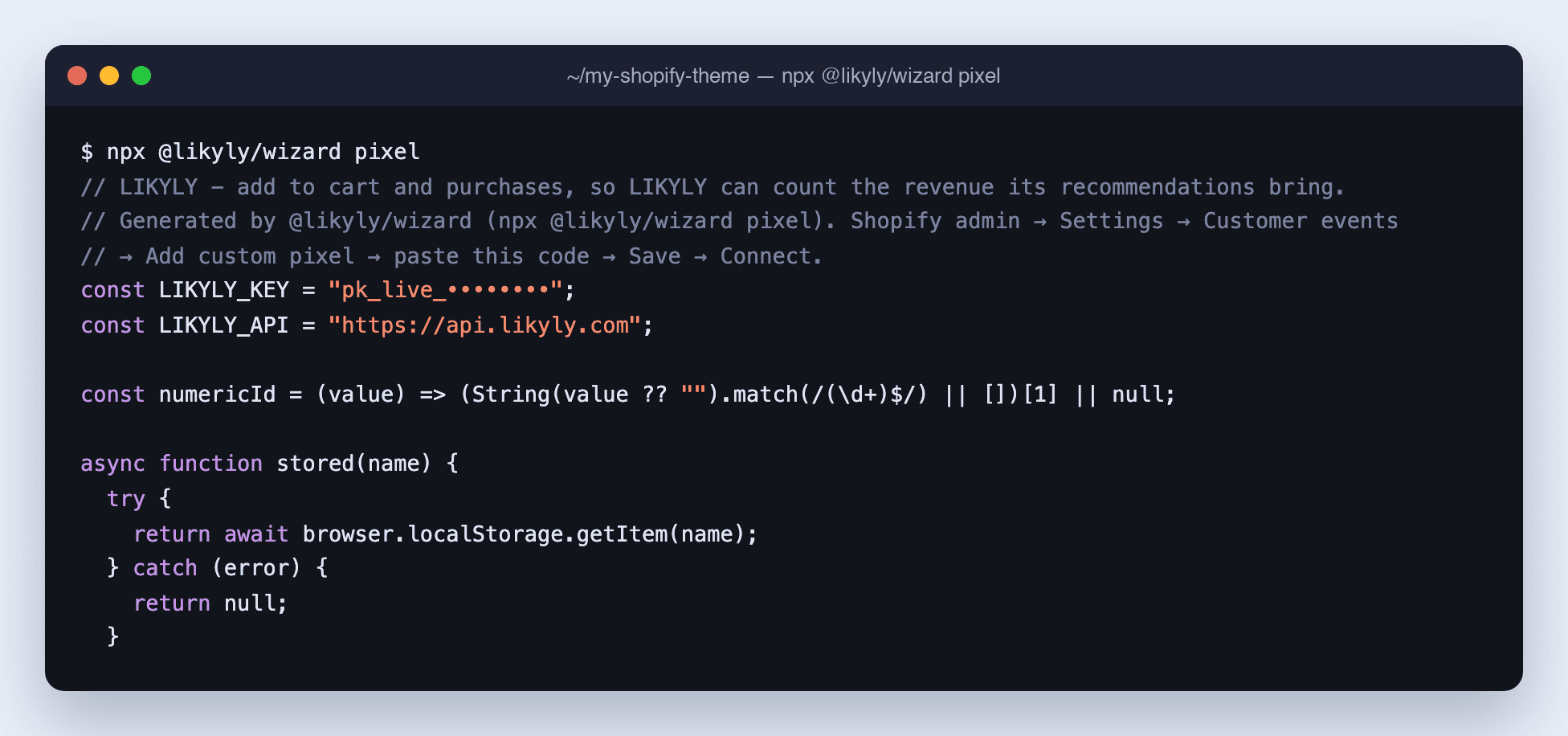
It sends add-to-carts and purchases, with their price and the recommendation the click came from. The same code is in the console (Events → Send purchases → Shopify), already filled in with your public key; the details are in the “Track purchases” docs. Test it from the store’s address, not from 127.0.0.1: the click and the payment must happen on the same domain.
Step 5: measure, in the terminal and in the console
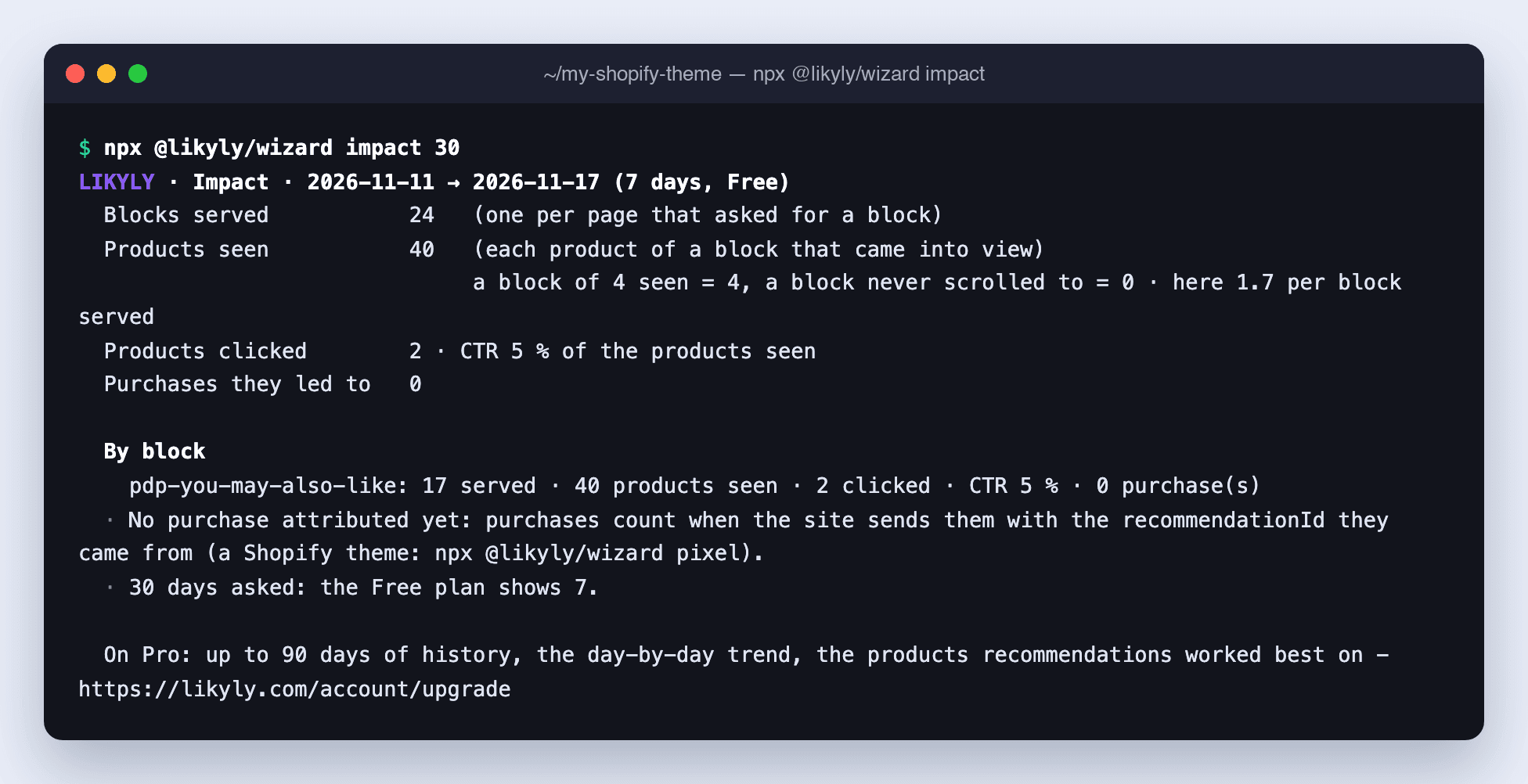
npx @likyly/wizard impact (or /likyly-impact in Claude Code) gives the results without leaving the terminal. On the test store’s Free plan, the last 7 days:
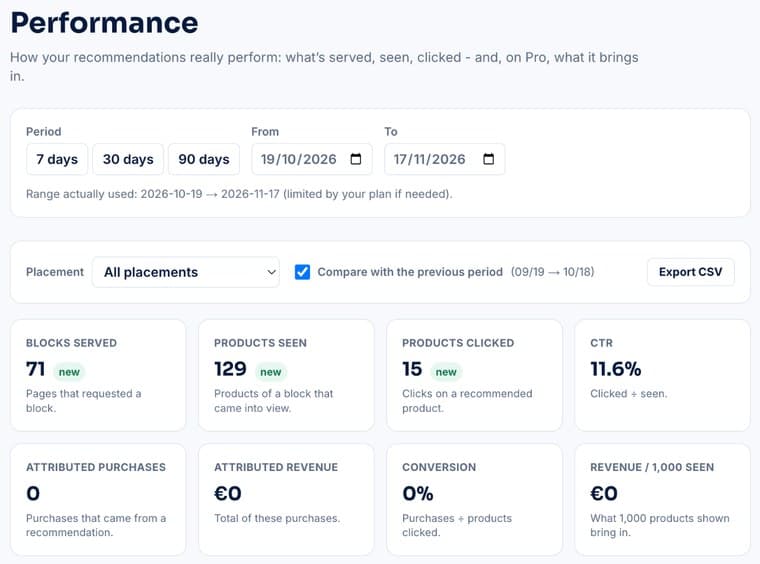
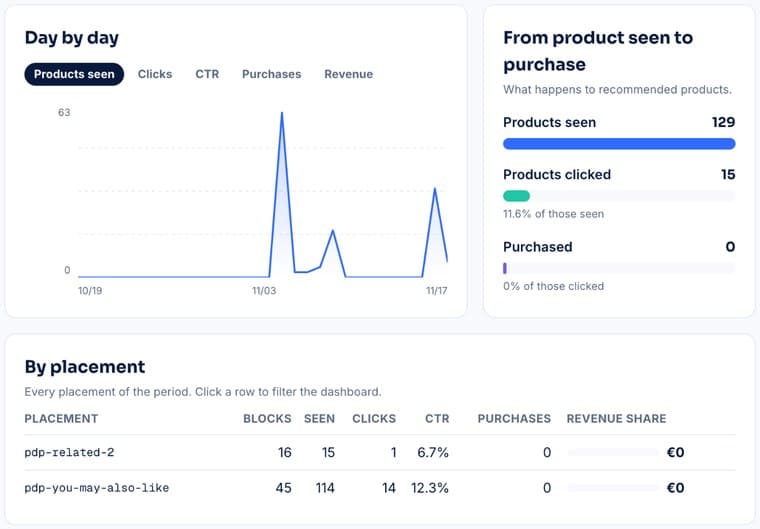
The console goes further. The Performance page of the Pro plan puts eight metrics side by side, each compared with the previous period:
What the Pro plan adds to the Free plan, in practice:
| Free | Pro | |
|---|---|---|
| History | 7 days | 90 days |
| Attributed purchases and revenue, conversion, revenue per 1,000 viewed | Totals | Breakdown by placement and by product |
| Day-by-day chart, top 10 products, CSV export | No | Yes |
| Products in the catalog | 50 | 500 |
| Catalog syncs per day | 1 | 24 |
| Automatic retrainings per day | 1 | 5 |
The last point matters more than it seems: it decides how fast the model benefits from what your store teaches it.
Why the products shown get more relevant over time
What follows is a theoretical reading of what happens inside the engine; the measurement, on 45 test shoppers, is in the Magento article. A recommendation engine picks, for each visitor, the best source of information available. The more there is, the closer its selection gets to what this visitor will actually want.
| When | What the engine knows | What it recommends |
|---|---|---|
| Day 1 | The catalog alone | Products that look like the one on display (semantic similarity), and the most viewed ones for a new visitor. |
| During a visit | The products viewed since arriving | A selection steered by the session, with no account or history. |
| After a few weeks | Thousands of views, clicks, carts, orders | Products that go together for your customers: collaborative filtering spots associations that no description contains. |
| For a signed-in customer | Their own history, from one visit to the next | A selection to their taste, without what they have already bought. |
Three mechanisms explain this progression:
- Every interaction is a vote. A view weighs little, an add-to-cart more, a purchase the most. The model (a matrix factorization) places customers and products in a single space of tastes; with few votes, this space is blurry, with many, the groups of tastes take a clear shape.
- The model retrains on its own. When enough new interactions have come in, LIKYLY trains a new version and measures its precision on a part of the data set aside. It only replaces the version in production if it does at least as well, on the same data: a worse retraining does not go to production.
- Chance recedes, then the curve levels off. The first few hundred interactions bring the most. Then the gain slows down: it is bounded by the catalog (how many products really suit a customer) and by the unpredictable share of any purchase. Rarely viewed products keep relying on content similarity: that is the point of a hybrid engine.
On Shopify, the step that matters most for this progression is the pixel: without it, the model learns from views and clicks, but not from purchases, the strongest signal. It also passes the Shopify ID of the signed-in customer, so that their history follows them from one visit to the next.
What this test does not tell
The test store is there to show the installation and the screens, not business results: a few dozen visits, made by the team. The click-through rates of a real store depend on its traffic, its catalog and where the blocks are placed. The console is built to track them on your side, on your data.
To get started: the installation guide, or straight away npx @likyly/wizard in your theme’s folder.